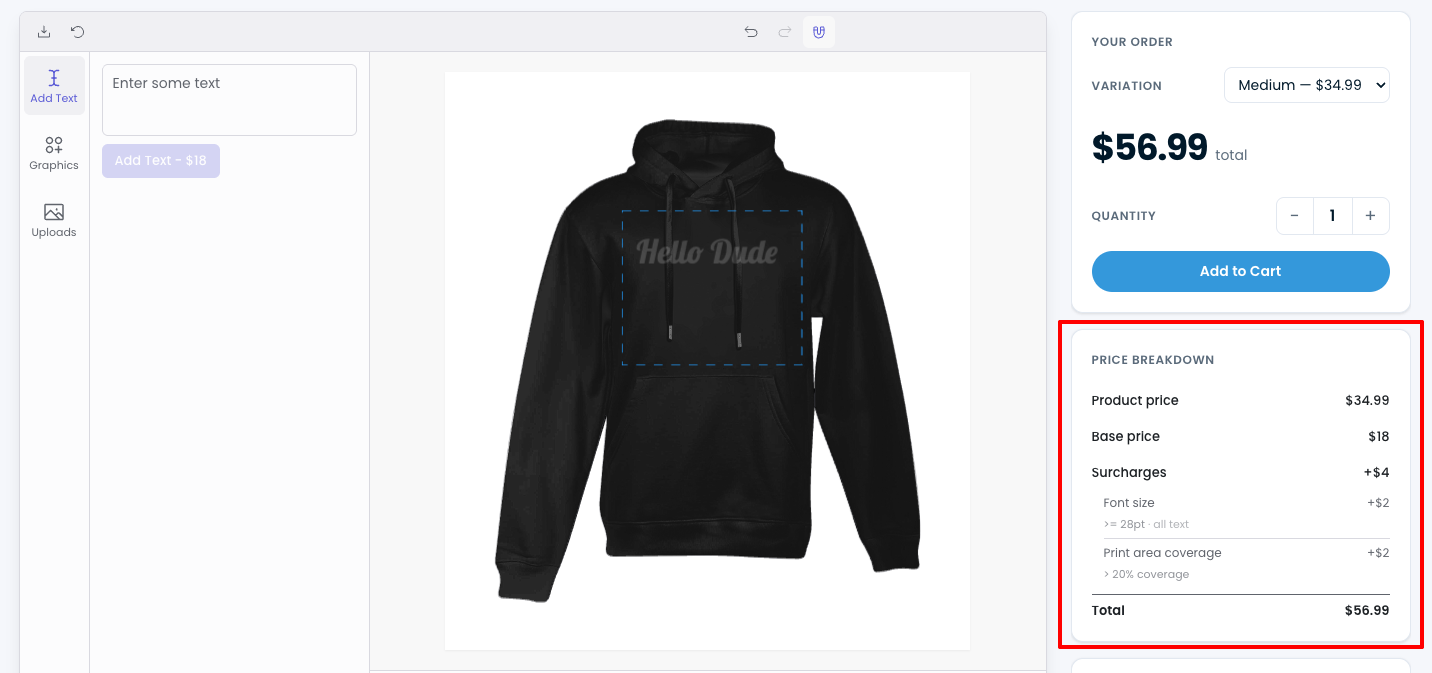
Display a live pricing breakdown
Use the [chamevo_pricing_breakdown] shortcode to show a live, itemized pricing summary anywhere on the product page — driven by your Dynamic Pricing rules.
The [chamevo_pricing_breakdown] shortcode renders a live pricing summary on the product page. As customers customize the product — adding text, uploading images, choosing colors — the breakdown updates in real time to show how the final price is calculated.
Before you start
- You need at least one Dynamic Pricing rule configured. Without pricing rules, the breakdown has nothing to display. See Dynamic Pricing overview to set up pricing rules first.
- The product customizer must be on the same page. The breakdown connects to the running customizer — it does not work standalone.
What the breakdown shows
The pricing breakdown lists each active pricing rule as a line item, with the current calculated value next to it. The total updates as the customer makes changes.
What appears in the breakdown depends on your pricing rule configuration. Typical line items include:
- Base product price
- Text length charge (if you charge per character or per line)
- Font size charge (if price varies by font size)
- Image size charge (if you charge based on upload dimensions)
- Color count charge (if you charge per number of colors used)
- Per-element prices (fixed prices assigned to specific design elements)
The breakdown is driven entirely by your Dynamic Pricing rules. If a rule is active and its condition is met, it appears as a line item.
Add the shortcode
The shortcode takes no attributes:
[chamevo_pricing_breakdown]
On a WooCommerce product page
For WooCommerce products, paste the shortcode in the Product short description field to place it in the product summary area:
- Open the product in WooCommerce → Products → Edit product.
- Paste
[chamevo_pricing_breakdown]in the Product short description field. - Update the product.
The breakdown renders in the short description area, typically between the product title and the Add to Cart button.
For a different position — such as below the Add to Cart button or in a custom sidebar column — use Elementor or another page builder.