Preparing the latest guides, releases, and feature request updates.
Loading guides
Preparing the right Knowledge Base content for this platform.
Control element properties outside the customizer | Chamevo Support Center
Control element properties outside the customizer
Use the [chamevo_property_control] shortcode to place fill color, font, font size, or text controls anywhere on the product page — outside the customizer canvas.
Updated April 30, 20265 min read
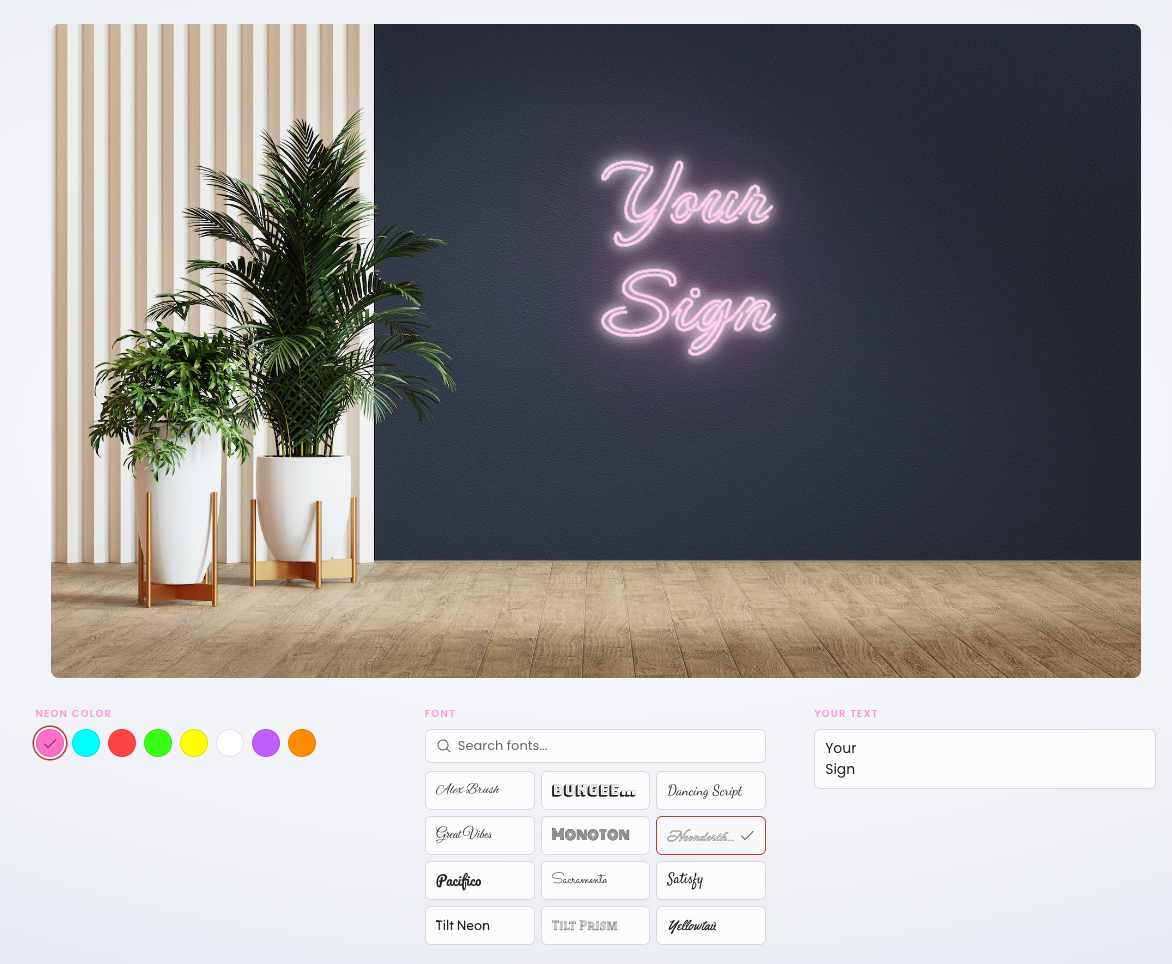
The [chamevo_property_control] shortcode lets you place an interactive property editor — for fill color, font family, font size, or text — anywhere on the WooCommerce product page. Instead of customers hunting for controls inside the customizer canvas, you put them right in the product summary or sidebar where they are easy to find.
Before you start
The element you want to control must exist in your Chamevo product with a specific title set in the Product Builder. The shortcode targets elements by their title — so the element needs a meaningful, unique title, not the default one.
The product customizer must be on the same page. The [chamevo_property_control] shortcode connects to the running customizer — it does not work on standalone pages without [chamevo] or a WooCommerce product page with Chamevo enabled.
How it works
When the page loads, the shortcode outputs a container div with data attributes. The Chamevo frontend JavaScript picks up the container and mounts a live property control component inside it.
The control stays in sync with the canvas. When a customer changes a value in the control — for example, picks a different fill color — the matching element on the canvas updates instantly. When the customer selects a different element on the canvas, the control updates to reflect that element's current value.
The element is matched by its title as set in the Product Builder. The title match is exact and case-sensitive.
Add the shortcode to the WooCommerce product short description, or use a page builder to place it anywhere in the product page layout.
For WooCommerce products, the product description fields accept shortcodes — paste the shortcode directly into the Short description field:
Open the product in WooCommerce → Products → Edit product.
Paste the shortcode in the Product short description field.
Update the product.
The control renders in the short description area, typically above the Add to Cart button.
For more precise control over placement, use Elementor or another page builder, or use a WooCommerce hook with a custom snippet to inject the shortcode at a specific position.
Elementor equivalent
If you build product pages with Elementor, use the Chamevo Property Control widget instead of the shortcode. It offers the same settings through a visual interface, including all attributes from the table above.
The widget is available in the Chamevo category in the Elementor widget panel.
In the Elementor editor, the widget shows a placeholder with the property type label. The live control renders on the frontend.
Verify the property control appears at the shortcode position.
If the control shows a fill color swatch: click a color — confirm the matching element on the canvas updates to that color.
If the control shows a text input: type in the input — confirm the element text updates on the canvas in real time.
Add the product to the cart and verify the customized value is captured in the order.
Troubleshooting
Nothing renders where the shortcode is placed
The customizer is not on the page. The control connects to the running customizer. It needs [chamevo] on the same page, or a WooCommerce product page with Chamevo enabled.
target or property is missing. Both attributes are required. Check the shortcode for typos.
property is not a valid value. Only fill, neonColor, fontFamily, fontSize, and text are accepted. Any other value produces no output.
Caching. If you just changed the shortcode, clear your page cache and reload.
The control renders but changes nothing on the canvas
Wrong target name. The target value must match the element title in the Product Builder exactly, including spaces and capitalization. Open the Product Builder, select the element, and confirm the title.
Product not yet loaded. The control connects to the customizer after the product initializes. If the page is loading slowly, the control may appear before the customizer is ready. This resolves once the customizer finishes loading.
Element not in the current view. The property control targets an element by title. If the element exists in a different product view than the one currently displayed, the control may not sync until that view is active.
The control appears but the options are not respected
For fill with a comma-separated list of hex colors, ensure each color starts with # and uses the correct hex format (e.g., #ff0000).
For fontFamily, the font names must match the font titles as configured in Chamevo → Fonts exactly.
Q: Do I need Elementor to use the property control shortcode?
A: No. The [chamevo_property_control] shortcode works in any WordPress page or post content area, including the WooCommerce product short description. Elementor is only needed if you want to place the control using drag-and-drop widgets.
Q: Can I add multiple property controls for different elements on the same page?
A: Yes. Place multiple shortcodes with different target values. Each control connects to its named element independently. Avoid placing two controls with the same target and property combination — this can cause unpredictable sync behavior.
Q: What happens if the target element title does not match any element?
A: The control renders on the page but does nothing. It will not throw an error. If you see a control that has no effect, double-check the target value against the element title in the Product Builder.