Create graphic blocks for multi-layer design templates
Build ready-made design templates from several image and text layers that customers add with one click and edit layer by layer.
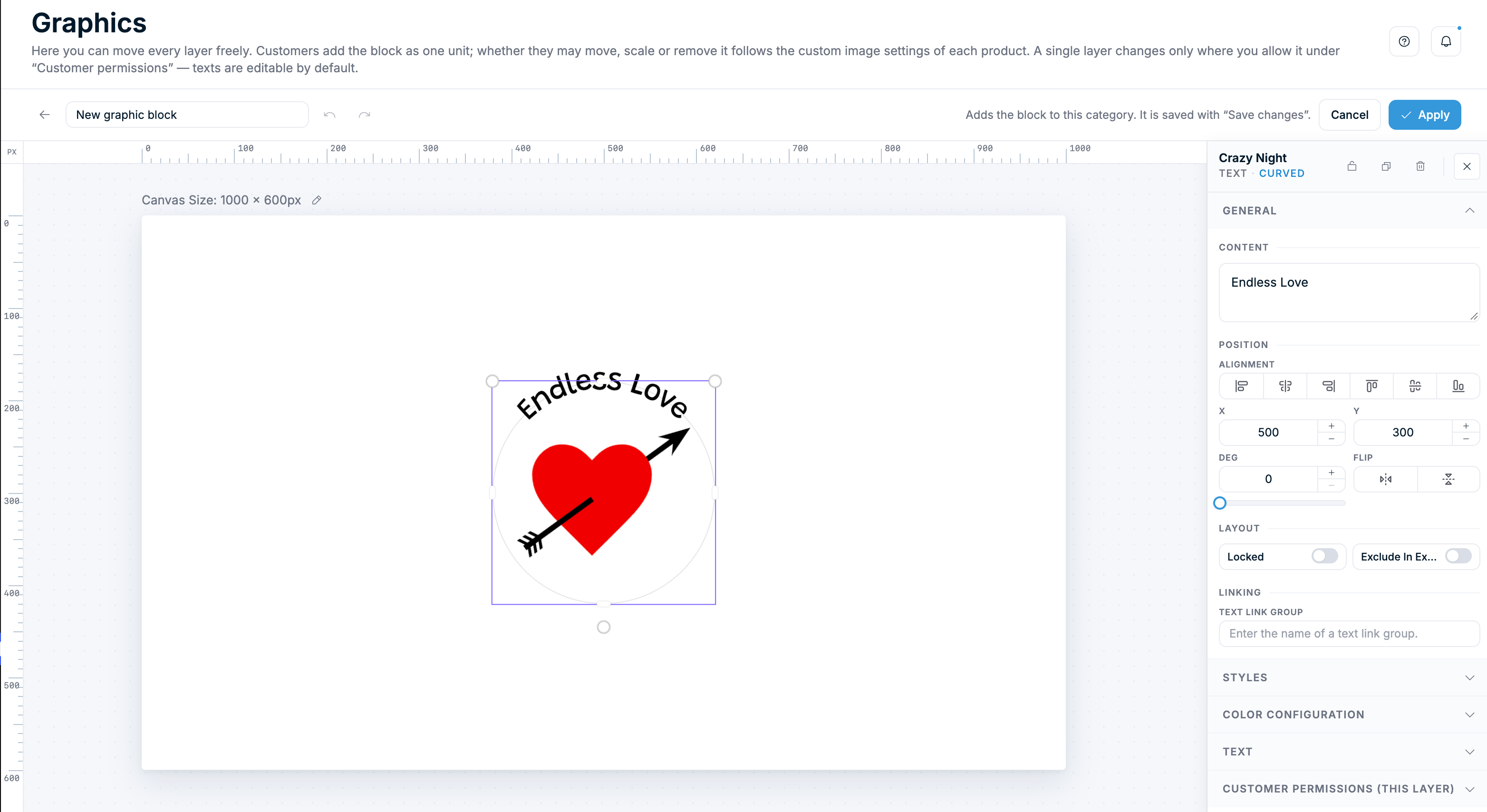
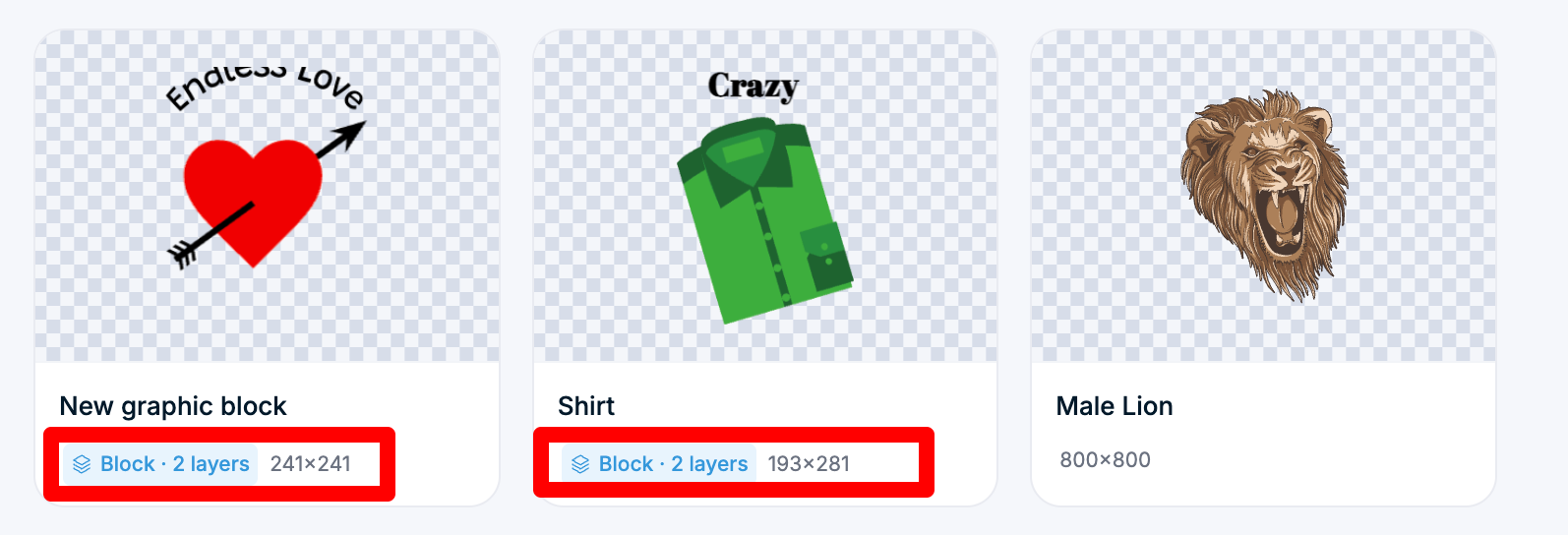
A graphic block is a ready-made design template made of several layers: images, text, and shapes. Customers add the whole block with one click or by dragging it onto the canvas. Then they can change each layer on its own, such as the team name on a badge or the photo inside a frame.
Blocks save customers from building a design from scratch. You control the layout, and customers only change the parts you allow.
Graphic blocks are available from Chamevo 2.8.0.
Before you start
- Update the Chamevo plugin to version 2.8.0 or later.
- Create a graphics category to hold your blocks (see browse and organize your graphics library).
- Upload the images you want to use as layers to your WordPress media library.
- Make sure the Graphics module is active in the product customizer, so customers can browse your categories.
Steps
Create a new block
- Go to Chamevo → Graphics in your WordPress admin.
- Click Manage on the category that should hold the block.
- Click New graphic block. The block editor opens in place of the graphics grid.
- Enter a name in the Block title field.

To turn an existing graphic into a block, hover over it and click the Convert to graphic block icon instead. The graphic becomes the first layer, and you can add text and more images around it. After you save, the conversion cannot be undone. Settings that don't apply to blocks, such as the category's size, color, and interaction rules, are dropped.
Add layers
- Use the icon buttons at the top of the layers panel to add content: Add Image, Add Text, Add Textbox, Add Curved, Add Neon, or Add Shape.
- For images, pick a file from the media library. For every layer, enter a layer title when prompted.
- Drag, scale, and rotate each layer on the artboard until the layout looks right. In the editor you can move every layer freely.
- Use Undo and Redo in the header to step through your changes.
The artboard matches the product stage size, so the block appears at the same size customers see.